

| TL;DR: This Canva AI review is based on extensive hands-on use in real design and content workflows. Canva AI excels at speed, accessibility, and ease of use, making it incredibly effective for quick visuals, social posts, presentations, and everyday design tasks. I break down what Canva AI is and isn’t, first impressions, and core features like Magic Design, Magic Media, Magic Expand, Background Remover, and Canva Code. The review also covers real limitations, free vs Pro pricing, and how Canva AI compares to best-in-class specialist tools. Final verdict explains who Canva AI is ideal for, who will eventually outgrow it, and when professional tools become the better choice. |
Canva AI is insanely useful.
That part isn’t up for debate.
It’s fast. It’s friendly. And it makes designing feel almost effortless. You type a prompt, drag a few elements around, and suddenly you have something that looks… good. Sometimes really good.
And that’s exactly why it works.
The catch is simple: just because everyone can design with Canva doesn’t mean everyone is a designer.
After using Canva AI hands-on and spending real time across its AI features, my takeaway is clear. Canva AI is built for usability, not precision. It shines when you want speed, convenience, and everything in one place. But the moment you start pushing for pixel-perfect layouts, deep customization, or specialized workflows, you hit a ceiling.
There are better background removers.
Better image generators.
Better illustration tools.
Better video AI models.
Canva doesn’t win because it’s the best at any one thing.
It wins because it makes everything usable for almost anyone.
And depending on who you are, that’s either its biggest strength—or the reason you’ll eventually outgrow it.
Why I Reviewed Canva AI (And Who This Review Is For)
I didn’t sit down to write this Canva AI review because it was trending or because “AI” is the hot keyword right now. I wrote it because Canva AI quietly became one of those tools I kept opening without thinking.
At some point, Canva stopped being “that beginner design tool” and started becoming the place where things actually got done. Social posts. Blog visuals. Quick presentations. One-off graphics where the goal isn’t perfection — it’s getting something out that looks clean and works.
That shift is what made me want to review Canva AI properly.
I’ve used Canva AI in real workflows. Not demos. Not launch experiments. Actual work where deadlines matter and speed matters more than polishing every pixel. The kind of work where you don’t want to overthink how to use Canva AI — you just want to open it, drop an idea in, and move on.
This review is for people who:
- Create content regularly
- Need visuals fast
- Don’t want to juggle five different tools
- Care more about shipping than obsessing over layout details
If you’re a creator, marketer, founder, or part of a team where design shouldn’t slow things down, Canva AI will feel very familiar.
That said, this isn’t a “Canva vs professional designers” argument.
Many people build real careers with Canva. Others use it alongside tools like Figma, Illustrator, or After Effects. Both paths are valid. The difference isn’t skill — it’s intent.
I’m not reviewing Canva AI as a replacement for specialist tools. I’m reviewing it for what it actually is: an accessibility-first, AI-powered layer that helps people quickly turn ideas into usable designs.
Powerful in the right context.
Limiting others.
That distinction matters. And everything in this review is framed through that lens.
A Quick Reality Check for Anyone Who Wants to Be a “Pro”
I want to say this clearly, especially for anyone thinking about building a career in design.
Canva AI will not make you a professional designer.
It will help you deliver fast.
It will help you ship decent-looking work quickly.
It will help you survive deadlines.
But it won’t give you mastery.
There is a niche called a “Canva designer,” and that’s completely valid. Plenty of people use Canva to deliver social posts, basic videos, presentations, and lightweight brand assets. For fast turnarounds and quick deliveries, Canva AI is genuinely useful.
But the moment you start chasing depth, precision, and long-term growth, there’s a point where most people switch.
And every serious designer eventually does.
Design isn’t one thing. It’s multiple disciplines:
- Graphic design
- Video editing
- Motion design
- Photo editing
- Color grading
- Typography and layout systems
Canva tries to cover all of this in one place. That’s impressive. But expertise doesn’t come from “everything in one place.” It comes from having room to go deep.
Yes, Canva lets you edit videos.
Yes, Canva lets you adjust colors.
Yes, Canva lets you animate elements.
But if you want to become a video editor, you’ll eventually move to tools like After Effects or Premiere Pro. If you care about real color grading, Canva’s controls won’t come close to professional tools. If you want advanced timelines, compositing, or cinematic workflows, Canva simply isn’t built for that.
And that’s not a flaw. That’s a design choice.
Canva AI is a fast-delivery tool, not a mastery tool.
So if you’re reading this thinking, “If I just learn Canva AI really well, I’ll become a pro designer,” that’s not how it works. Real expertise comes from tools that force you to think, experiment, and make tradeoffs. Canva removes friction. Professional tools introduce friction on purpose.
Use Canva AI to move fast.
Use it to deliver.
Use it to get things out the door.
But if your goal is to build deep skills and grow in a specific design niche, you’ll eventually outgrow it. And that’s not a failure — that’s progress.
What Canva AI Is (And What It Is NOT)
Canva AI is good.
Not the best. Not the most advanced. But good enough for most people — and that’s exactly why it works.
Most users aren’t chasing perfection. They want something that works, looks decent, and doesn’t require a learning curve. Canva AI delivers that consistently. You open it, drop an idea in, tweak a few things, and move on. For a huge percentage of users, that’s the win.
The real strength of Canva AI isn’t raw output quality.
It’s accessibility.
I’ve seen this play out in real teams. My primary design tool is Figma. That’s where I’m most comfortable. But in collaborative environments, Canva often wins because everyone can access it, understand it, and edit without friction. No steep learning curve. No fear of “breaking the design.”
That matters more than people admit.
A design isn’t very useful if only one person can open it, tweak it, or confidently work inside it. Canva AI fits into teams because it’s familiar, browser-based, and frictionless. That’s a huge advantage in fast-moving workflows.
What Canva AI Is
- An AI-powered starting point
- A usability-first design system
- A way to turn ideas into “good enough” visuals very fast
It’s built for speed, not depth.
What Canva AI Is Not
- A professional, pixel-perfect design tool
- A best-in-class AI generator for any single task
- A replacement for designers or specialist tools
If you want the best image generation, dedicated image models will outperform Canva.
If you want advanced video editing, professional timelines, and color tools, win.
If you want deep illustration or layout control, specialist design software exists for a reason.
Canva knows this. It’s not trying to compete there.
Canva AI doesn’t try to win on precision.
It wins on accessibility.
By bundling photo editing, video editing, presentations, animations, and AI tools into one place, Canva makes creation easier for more people. But all of these are separate niches. Real expertise in any one of them requires tools that let you go deep — advanced controls, systems, and complexity that Canva intentionally abstracts away.
So if you expect Canva AI to replace professional tools, you’ll be disappointed.
If you expect it to remove friction, speed up delivery, and make collaboration easier, it does exactly what it promises.
That tradeoff is intentional. And once you understand it, Canva AI makes a lot more sense.
Signup and First Impressions: Zero Setup, Instant Momentum
There’s no separate sign-up process for Canva AI.
And that’s not an accident.
You don’t create a “Canva AI account.” You just log into Canva. A Google account is enough. No onboarding forms. No setup questions. No “tell us what you plan to design” screens.
Once you’re in, Canva AI is already there.
Right on the home screen, you’ll see three clear options: Your designs, Templates, and Canva AI. Click Canva AI and you’re immediately inside the experience. No toggles. No feature unlocking. No friction.
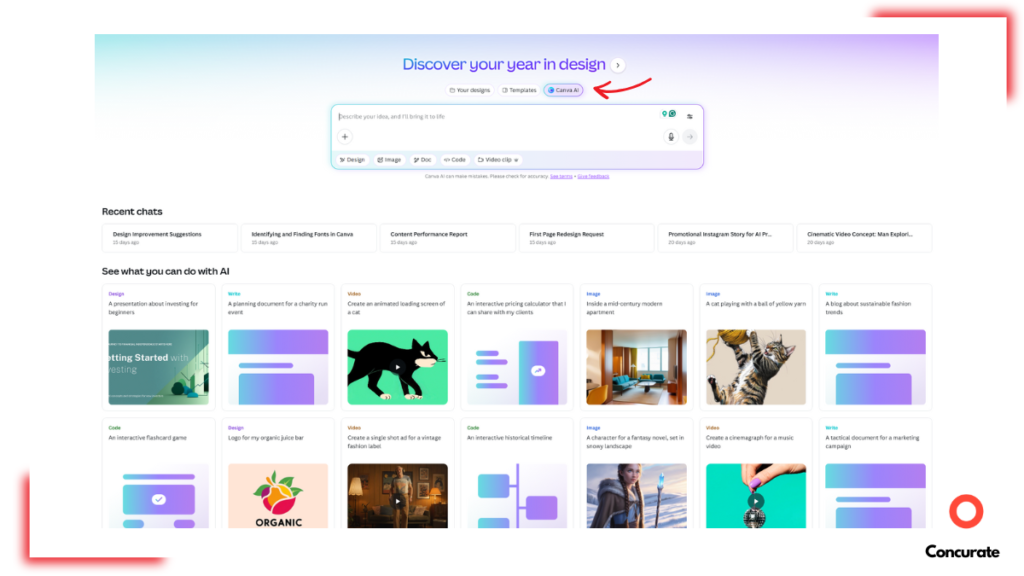
Source – canva
That first click sets the tone.
My first impression was simple: everything is already ready. You type a prompt, Canva suggests designs, and you’re dropped straight into a fully editable canvas. Text, images, colors, layout — nothing feels locked or fragile. It’s drag, drop, tweak, done.

Source – canva
This is where Canva’s UI and UX really shine.
Even on first use, it’s intuitive in a way that’s hard to explain until you try it. You don’t need a tutorial. You don’t need instructions. You just… know what to do. The interface quietly nudges you forward without shouting instructions.
There is a short adjustment phase — not because Canva AI is complex, but because there’s a lot in one place. Design, docs, images, video, AI tools, code — everything lives inside the same ecosystem. It takes a little time to build that mental map.
Once it clicks, speed takes over.
After getting familiar with the dashboard, creating solid designs takes minutes. Sometimes less. Recent projects are easy to find. Nothing gets lost. You’re not hunting through folders, wondering where things went.
Canva’s dashboard isn’t flashy or deeply customizable. It’s functional. And that’s exactly the point. The goal isn’t to impress you with power — it’s to keep you moving.
For a first impression, that matters more than anything.
Background Remover (Image): The Feature I Use the Most
If I had to name the Canva AI feature I use the most, it’s the background remover.
Not image generation. Not templates. This.
It sounds basic. Just background removal.
But in real workflows, this feature quietly saves the most time.
Before this was built into Canva, background removal was annoying. You’d download an image, open a third-party tool, remove the background, export a PNG, upload it back into Canva, and then continue designing. Or you’d hunt for random PNGs online and hope they worked.
That entire loop is gone.
Now the workflow is stupidly simple:
- Copy any image from the internet
- Paste it directly onto the Canva canvas
- Click the image
- Tap BG Remover
- Done
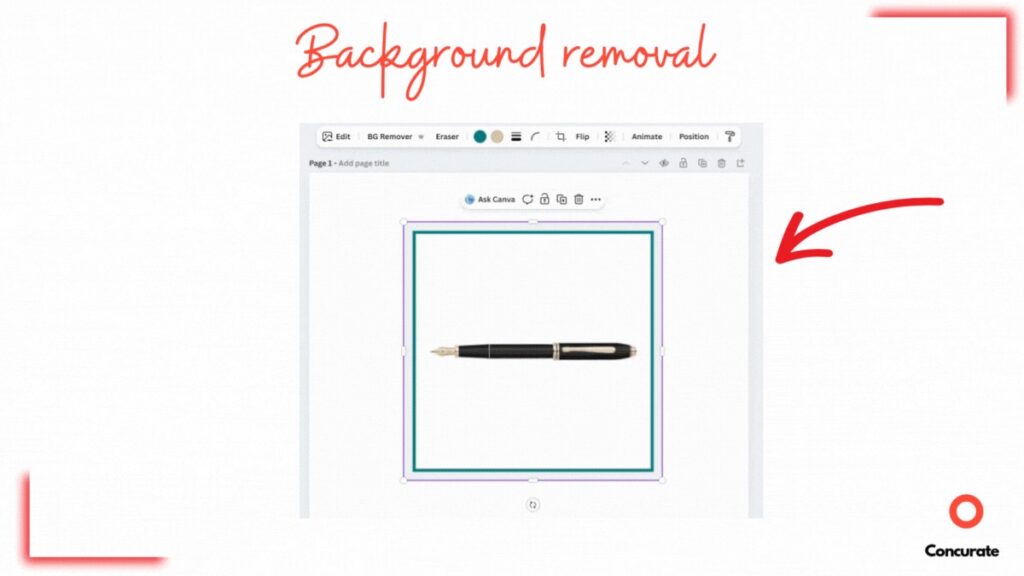
Source – canva
No tab switching. No exports. No re-uploads.
That reduction in friction matters more than most “flashy” AI features.
How Good Is It, Really?
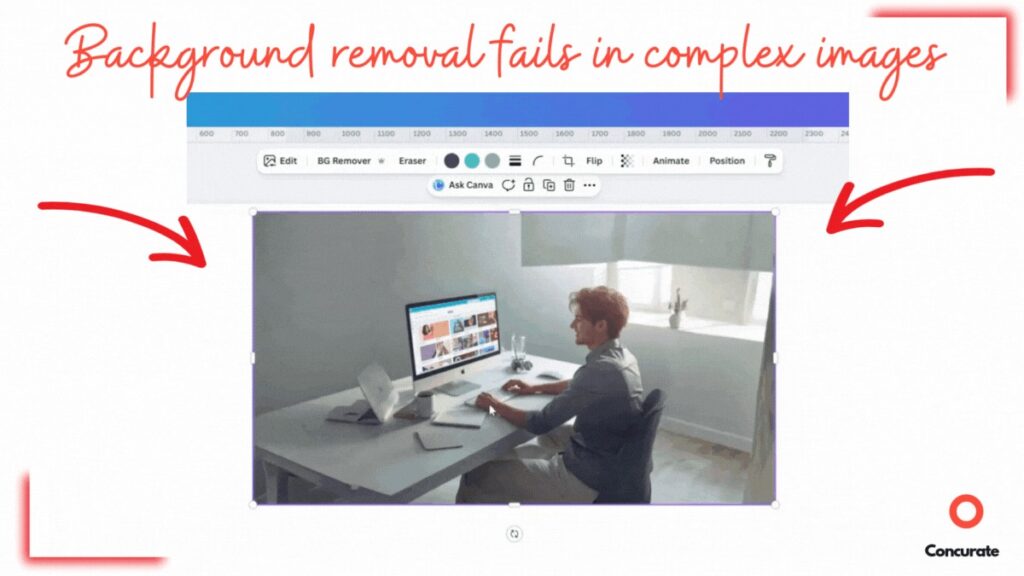
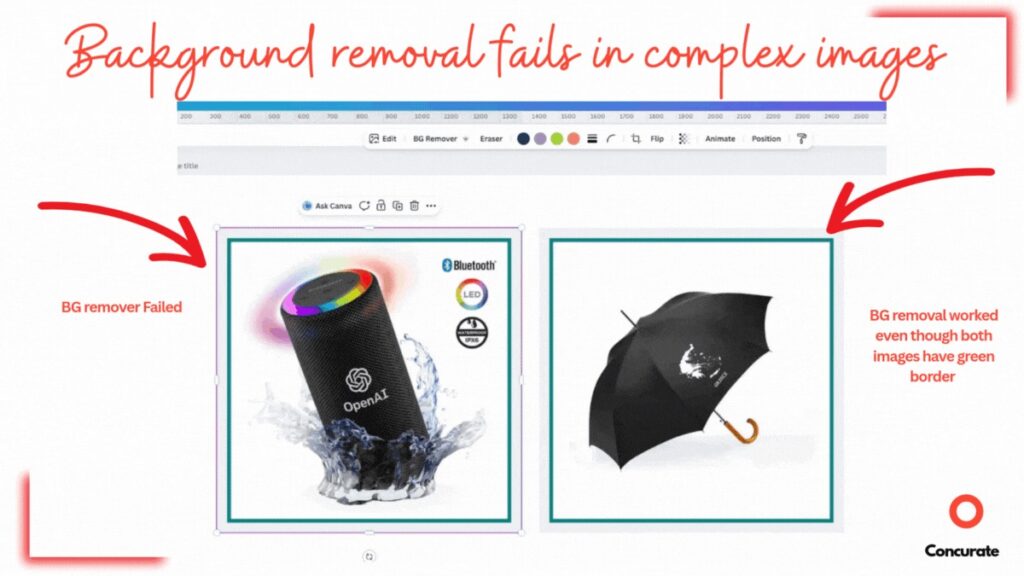
From my experience, Canva’s background remover works cleanly about 85% of the time. For most everyday images, it nails the cutout.
The remaining 15% is where it struggles. Edges get messy. Parts of the subject disappear. In those cases, I still fall back on third-party tools.
Source – canva
Source – canva
But there’s a small trick that improves results more often than you’d expect.
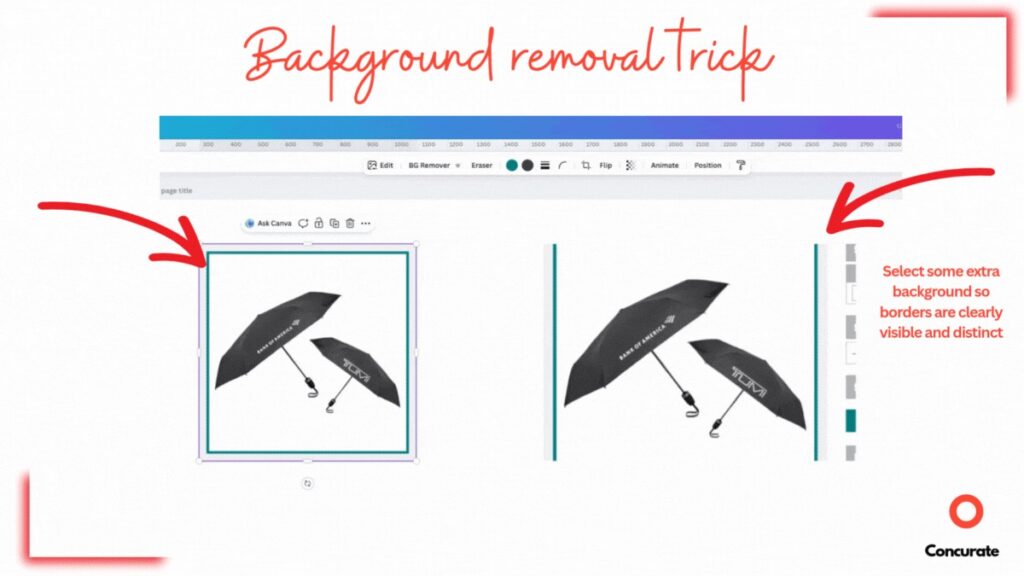
When Background Remover Fails, Try This (It Actually Works)
Alternative text: Animated GIF demonstrating a Canva background removal trick by selecting extra background so object edges appear cleaner and more defined.
Source – canva
Sometimes the same image fails on the first attempt but works the next time. The difference is context.
Before giving up, try this:
- Add extra empty space around the image on the canvas
- Place a simple background color, shape, or text behind the subject
- Increase contrast between the subject and the background
- Run BG Remover again
It sounds counterintuitive, but giving the AI more visual context helps it understand what’s foreground and what’s background. I’ve shown this below — the same image fails first, then works once the AI has more information to work with.
Is this a workaround? Yes.
Does it still save time compared to leaving Canva and using another tool? Absolutely.
Why This Feature Matters
Background removal isn’t glamorous.
But it’s one of those tasks you do constantly.
Canva’s background remover isn’t the most advanced one out there, but it’s integrated, fast, and “good enough” most of the time. And when something saves you from leaving your main tool, that’s a real win.
Sometimes the simplest features end up being the most valuable. This is one of them.
But there’s a small trick that helps more often than you’d expect.
Magic Expand: Surprisingly Powerful, Occasionally Weird
Magic Design is easily my favorite Canva AI feature.
The first time I used it, I didn’t expect much. I tried it anyway. Canva generated three design options — and one of them instantly clicked. The vibe was right. Modern. Minimal. Clean. It felt like something I’d actually ship, not just “AI-generated filler.”
That moment sold me.
The real magic isn’t just that Canva creates a design. It’s that the design is fully editable. Nothing is locked. Nothing feels fragile. You can pull the output straight into the editor and tweak everything — layout, text, spacing, colors, elements — all of it.
This is where Magic Design pulls ahead of most AI design features.
It doesn’t try to finish the job for you.
It gets you 80% of the way there, fast.
Magic Design works across formats, too. You’re not limited to one use case. You can generate:
- Instagram posts
- LinkedIn graphics
- YouTube thumbnails and banners
- Posters, flyers, and even presentations
You pick the format, describe what you want, and Canva gives you multiple directions instantly. From there, it’s classic drag-and-drop Canva.
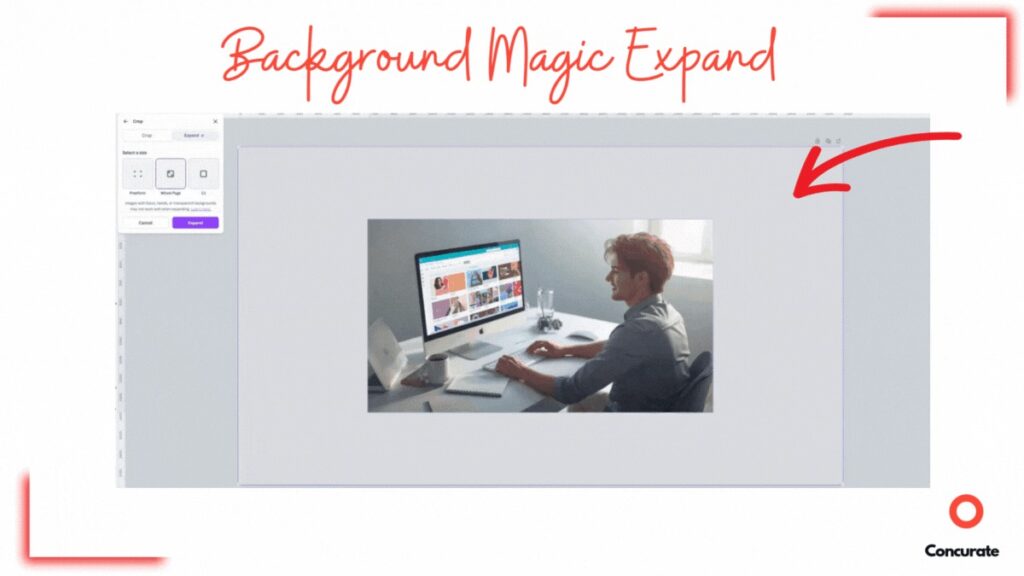
Source – canva
What I like most is how it kills blank-canvas anxiety. You’re never staring at an empty page wondering where to start. You’re reacting, refining, and adjusting instead of inventing everything from scratch.
Is it perfect every time? No.
Does it sometimes feel a little generic? Yes.
But when you need something that looks good, matches the vibe, and doesn’t fight you while editing, Magic Design delivers. For quick turnarounds, social content, and everyday design needs, it saves an insane amount of time.
If someone asked me which Canva AI feature I’d miss the most, this would be it.
Magic Media (Text-to-Graphic): Convenience Over Craft
Magic Media’s Text-to-Graphic feature is useful — but you need to understand what problem it’s actually solving.
This isn’t about creating beautiful, custom illustrations from scratch. It’s about speed.
You type a short prompt and Canva generates icons, stickers, simple illustrations, or graphic elements you can drop straight into your design. No hunting through asset libraries. No jumping to third-party icon sites. No importing SVGs.
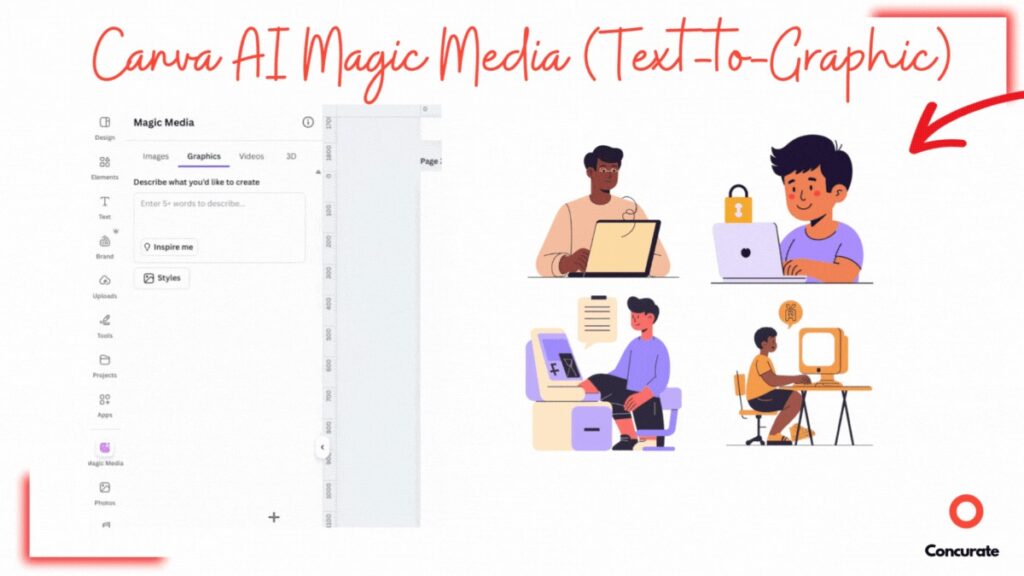
Source – canva
For everyday design work, that convenience matters more than people admit.
Where this feature works well:
- Simple icons for presentations
- Quick illustrations for blog visuals
- Decorative elements for social posts
- Filling visual gaps without breaking flow
You don’t need originality here. You need something that fits.
And that’s exactly what Canva delivers.
But this is where the ceiling shows up.
If you care about illustration style, brand-specific iconography, or consistent visual systems, this tool won’t get you there. The outputs are serviceable rather than distinctive. They do the job, but they don’t elevate the design.
That’s the tradeoff.
Magic Media (Text-to-Graphic) prioritizes speed over craft. It’s not meant to replace illustrators or advanced vector tools. It’s meant to help non-designers and fast-moving teams avoid friction.
I use it when:
- I need an icon now
- The graphic is supporting content, not leading it
- Precision doesn’t matter as much as momentum
If you expect handcrafted illustrations, you’ll be disappointed.
If you expect quick, usable graphics that don’t slow you down, it does exactly what it’s supposed to.
Magic Design: The Fastest Way to Go From Prompt to Post
Magic Design is the Canva AI feature that genuinely surprised me.
The first time I used it, I wasn’t expecting much. I gave it a prompt, Canva generated three design options, and one of them immediately clicked. The vibe was right. Modern. Minimal. Clean. It felt like something I’d actually use, not just “AI output.”
That alone was impressive.
But the real win came next.
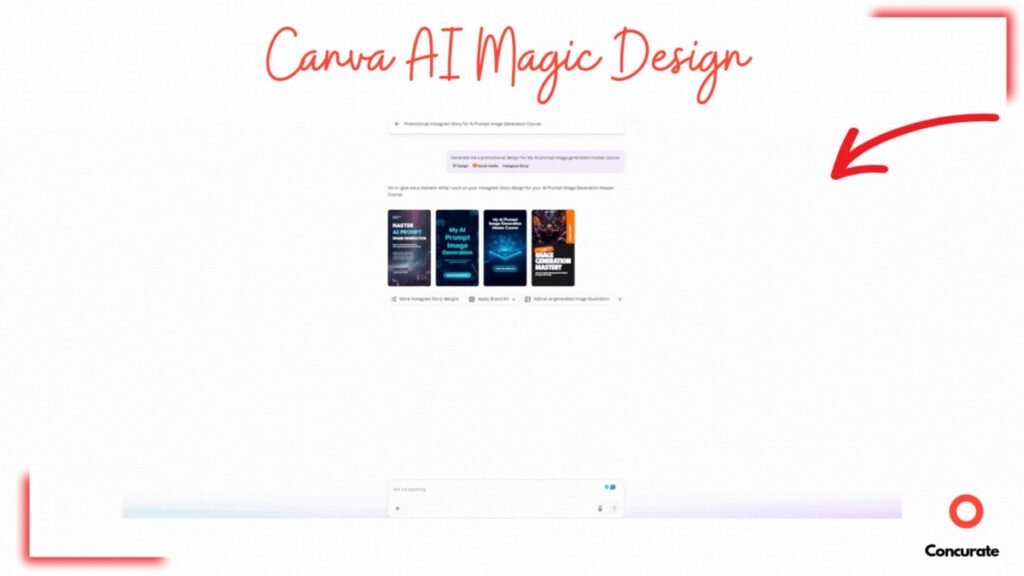
Source – canva
This is where Magic Design stands out.
You’re not just generating a template. You’re generating a starting point that’s ready to ship.
Magic Design works across formats, too. You can use it to create:
- Instagram and LinkedIn posts
- YouTube thumbnails and banners
- Posters and flyers
- Presentations and slides
You choose the format, describe what you want, and Canva gives you multiple design directions instantly. From there, it’s classic drag-and-drop Canva.
This completely removes blank-canvas anxiety.
Instead of thinking, “Where do I even start?”, you’re already editing something that mostly works. For fast turnarounds, content workflows, and last-minute requests, that’s huge.
Is it perfect every time? No.
Is it always original? Also no.
But that’s not the goal.
Magic Design gets you to 80% done in minutes, and that’s often exactly what you need. You can polish the rest manually without fighting the layout or rebuilding everything from scratch.
If I had to pick one Canva AI feature that I come back to the most, this would be it. Not because it’s flashy, but because it respects how real work actually happens.
Canva Code: Ambitious, Impressive, and Not for Everyone
Canva Code is where you can clearly see Canva’s ambition.
Design wasn’t enough. Presentations weren’t enough. Video wasn’t enough. Now Canva wants to help people build websites and interactive experiences too.
So I tried it.
I gave Canva Code a detailed prompt and waited to see what it would produce. The output wasn’t bad. It wasn’t broken. It just wasn’t exactly what I had in mind.
And that’s an important distinction.
I know people who’ve built genuinely good websites with Canva. Clean layouts. Functional pages. Stuff that works. So this isn’t a “Canva Code doesn’t work” situation. It’s more about who’s using it and how.
This review is based purely on my usage and my expectations.
To explain it simply: asking me to judge Canva Code as a web builder is like asking a non-pilot to review an airplane cockpit. I can sit there, press a few buttons, and share opinions. But I’m not the right person to fly the plane at its full potential.
Great tools need skill to unlock their full power.
Canva Code works the same way. If you understand prompting, structure, and what you’re actually asking the AI to build, you’ll get much better results. If you don’t, the outputs will feel limited — and that’s not entirely the tool’s fault.
What impressed me is how fast it is.
Canva Code generates interactive layouts, animations, and basic website components inside a design-first platform. For small sites, digital cards, landing pages, or quick experiments, it can be more than enough.
But it’s not for everyone.
If you’re expecting production-ready code, deep customization, or developer-level control, you’ll hit limits quickly. Canva Code isn’t trying to replace developers or professional web builders. It’s trying to make basic interactive creation accessible to people who already live inside Canva.
My takeaway:
- Use Canva Code as a starting point
- Use it for quick builds and experiments
- Use it when speed matters more than control
AI doesn’t replace skill. It amplifies it. And Canva Code makes that very clear.
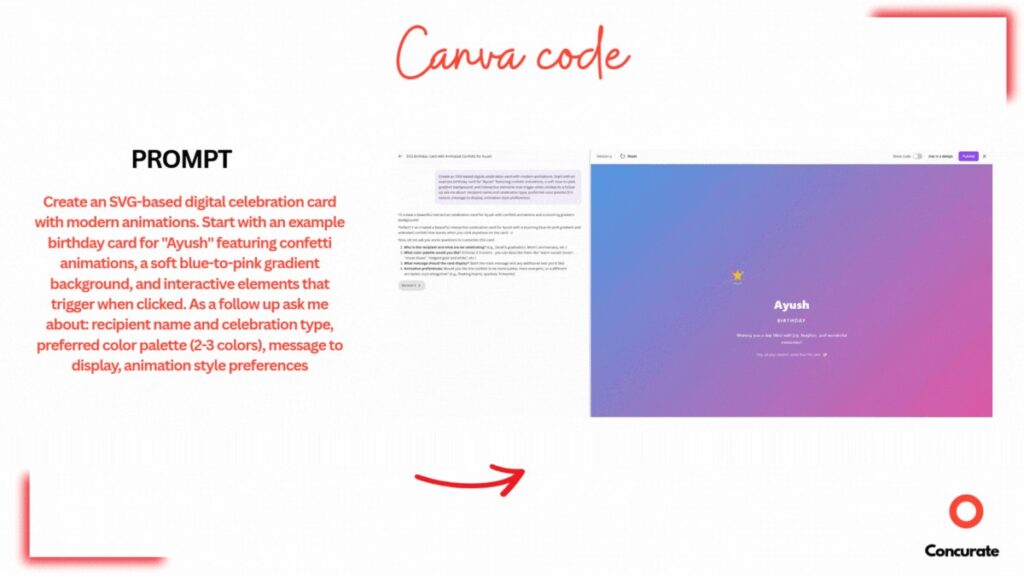
Source – canva
What Impressed Me While Using Canva AI (Revised)
A few things stood out immediately while using Canva AI in real workflows.
First, speed. Ideas turn into usable designs insanely fast. No setup, no blank-canvas paralysis. You start with something concrete and refine from there. That momentum matters more than people realize.
Second, everything stays editable. Canva AI doesn’t lock you into its outputs. Templates, images, layouts — all of it lives inside the same editor. You can tweak, break, and rebuild without starting over. That’s a big reason it actually fits team workflows.
Third, accessibility at scale. Canva works because everyone already knows it. In teams, familiarity beats depth. People aren’t scared to open files, make changes, or experiment. That confidence speeds things up.
And finally, “good enough” consistency. Canva AI isn’t chasing perfection. It delivers reliable results across many design needs in one place. For most real-world use cases, that reliability is more valuable than best-in-class output.
It’s not about impressing designers.
It’s about keeping work moving.
Free vs Pro: What You Actually Get
Canva’s free plan is genuinely usable. And that’s important to say upfront.
You’re not locked out of the product. You can design, export, and ship things without paying a dollar. For casual use, personal projects, or testing Canva AI, the free plan does the job.
But once Canva becomes part of your regular workflow, the limits show up fast.
The biggest difference between Free and Pro isn’t just “more templates” or “more stock.” It’s how much friction you’re willing to tolerate. Things like watermarks, missing AI features, limited storage, and no brand control slowly start getting in the way.
Here’s a clean breakdown of what actually changes when you upgrade.
Canva Pricing Plans Overview (2026)
| Plan | Monthly Cost (USD) | Annual Cost (USD) | Users | Best For |
| Canva Free | $0 | $0 | 1 | Casual users, testing Canva |
| Canva Pro | $12.99 | $119.99 | 1 | Creators, freelancers, solo marketers |
| Canva for Teams | $14.99 | $149.90 | Up to 5 | Small teams, agencies |
| Canva Enterprise | Custom | Custom | Custom | Large organizations |
Feature Comparison: Free vs Pro vs Teams vs Enterprise
| Feature | Free | Pro | Teams | Enterprise |
| Templates | 250K+ | 610K+ | 610K+ | 610K+ |
| Stock photos & videos | Limited | 100M+ | 100M+ | 100M+ |
| AI features (Magic Design, Expand, Media) | Limited | Yes | Yes | Yes |
| Background remover | No | Yes | Yes | Yes |
| Brand Kits | No | Up to 100 | Up to 100 | Unlimited |
| Storage | 5 GB | 100 GB | 1 TB | Custom |
| Team collaboration | No | No | Yes | Yes |
| Support | Standard | Priority | Priority | Dedicated |
What the Free Plan Is Good For
Stick with Canva Free if:
- You design occasionally
- You’re experimenting with Canva AI
- You don’t care about watermarks or brand consistency
- You’re okay with limited AI access and storage
For basic needs, the free plan is surprisingly generous.
When Canva Pro Starts Making Sense
Upgrade to Canva Pro if:
- You create content regularly
- You rely on AI features like Magic Design, Magic Expand, or Background Remover
- You want clean exports without watermarks
- You care about brand consistency
- You don’t want to think about storage limits
For solo creators, Canva Pro is the real “unlock.” This is where Canva starts to feel fast rather than restrictive.
Teams and Enterprise: Who They’re Really For
Canva for Teams is useful when:
- Multiple people need to edit designs
- Brand control matters
- Collaboration is part of your workflow
That said, Canva recently raised prices for Teams. If you’re a small team, the value is there — but it’s no longer a no-brainer.
Enterprise is only worth it for large organizations that need:
- SSO
- Advanced asset management
- Centralized brand governance
- Dedicated support
Most individuals and small teams don’t need this.
A Note on Regional Pricing
Canva uses regional pricing, which helps accessibility:
- USA: $12.99/month (Pro)
- India: ₹499/month
- UK: £10.99/month
- Philippines: ₱349/month
Always check Canva’s official pricing page, because costs vary by country.
My Honest Take
If you only open Canva once in a while, stay on the Free plan.
If you use Canva to ship work, Canva Pro is worth the investment. The time saved by AI features alone quickly covers the cost.
Teams and Enterprise make sense only when collaboration and brand control become real problems — not before.
Canva AI vs Best-in-Class Tools (Why Specialists Still Win)
This really comes down to breadth vs depth.
Canva AI tries to do a lot in one place. Design, images, video, presentations, light web work, AI generation — all bundled into a single, accessible tool. For most people, that’s exactly why it works.
But specialist tools exist for a reason.
When you compare Canva AI with best-in-class tools in specific areas, the differences show up quickly:
- Dedicated image generators produce better detail and control
- Professional video tools offer real timelines, color grading, and effects
- Advanced design tools give pixel-level precision and system-level control
That doesn’t mean Canva AI is weak. It means it’s focused on a different job.
Canva optimizes for speed, accessibility, and collaboration. Specialist tools optimize for precision, depth, and mastery. You feel that difference the moment you try to push Canva beyond its comfort zone.
In real workflows, I’ve seen both coexist.
Canva AI handles fast execution and team-friendly work extremely well. Specialist tools win when quality, control, or complexity becomes the priority.
Canva AI doesn’t lose because it’s worse.
Specialists win because they’re focused.
That’s the honest comparison.
Who Will Eventually Outgrow Canva AI
There’s a clear pattern I’ve seen over time.
The moment someone decides to deep dive into a specific niche, Canva slowly becomes a secondary tool.
Not because Canva is bad.
But because mastery needs depth.
If you choose a focused path and want to grow in it long-term, you naturally move toward tools built for that depth:
- UI/UX designers move to Figma
- Graphic designers move to Illustrator
- Motion designers move to After Effects
- Video editors move to Premiere Pro
Each of these tools exists for one reason: control.
Canva simplifies complexity on purpose. That’s what makes it fast and accessible. But the same abstraction that helps beginners eventually limits exploration. You can’t fully master color grading without real color tools. You can’t master motion without timelines, layers, and keyframes.
That’s the tradeoff.
Canva AI is excellent for fast delivery and everyday work.
Specialist tools are where people go when they want to go beyond “good enough.”
Most professionals don’t quit Canva.
They just stop relying on it as their primary tool once they commit to a niche.
And that’s not a downgrade.
That’s growth.
If you enjoy breaking down tools, tradeoffs, and long-term skill paths like this, our newsletter dives deeper into these ideas with practical, no-fluff analysis.
Final Verdict: Canva AI Is a Shortcut, Not a Substitute
Canva AI does exactly what it promises.
It makes design faster.
It makes creation accessible.
And it removes friction from everyday workflows.
That’s why it works.
After using Canva AI across its core features, one thing is clear: Canva isn’t trying to beat specialist tools at their own game. It’s about making sure anyone can go from idea to output without feeling blocked, overwhelmed, or stuck.
And for most people, that’s more than enough.
If your priority is speed, collaboration, and getting things shipped, Canva AI is genuinely useful. The AI features feel integrated, not bolted on. Everything stays editable. Everything lives in one place. And the learning curve is almost nonexistent.
But Canva AI is not a shortcut to mastery.
If you want to go deep, specialize, and build long-term expertise in a specific niche like UI design, illustration, motion, or video editing, you’ll eventually need tools built for that depth. Canva simplifies complexity by design. Specialist tools expose it.
That’s the tradeoff.
My honest take:
- Use Canva AI for fast execution
- Use it for collaborative, everyday design work
- Use it when speed matters more than precision
Just don’t confuse ease of use with professional growth.
Canva AI is a powerful starting point.
For many, it’s also a long-term tool.
But it’s not a substitute for skill, taste, or specialization.
And it doesn’t need to be.
Design Gets Attention. Content Gets Results.
After reading this Canva AI review, you’re clear on the design side.
You know what Canva AI does well.
You know where it saves time.
You know when it works — and when it doesn’t.
You’re sorted on speed, accessibility, and visuals.
But here’s the part people don’t like to hear.
Great design alone doesn’t win.
A clean Canva layout won’t fix unclear messaging.
A beautiful AI-generated graphic won’t rank if the intent is wrong.
And a polished post won’t convert unless it solves a real problem.
That’s where most content falls apart.
Not because the design is bad — but because the content underneath it doesn’t pull its weight. No clarity. No positioning. No reason for the reader to care or act.
Canva AI makes creation easier.
It doesn’t decide what you should create or why it should exist.
That’s strategy. And that’s the hard part.
At Concurate, we help B2B SaaS teams turn content into outcomes. Not just traffic or “nice-looking pages,” but real sign-ups, demo requests, and free trials — driven by search intent and buying behavior.
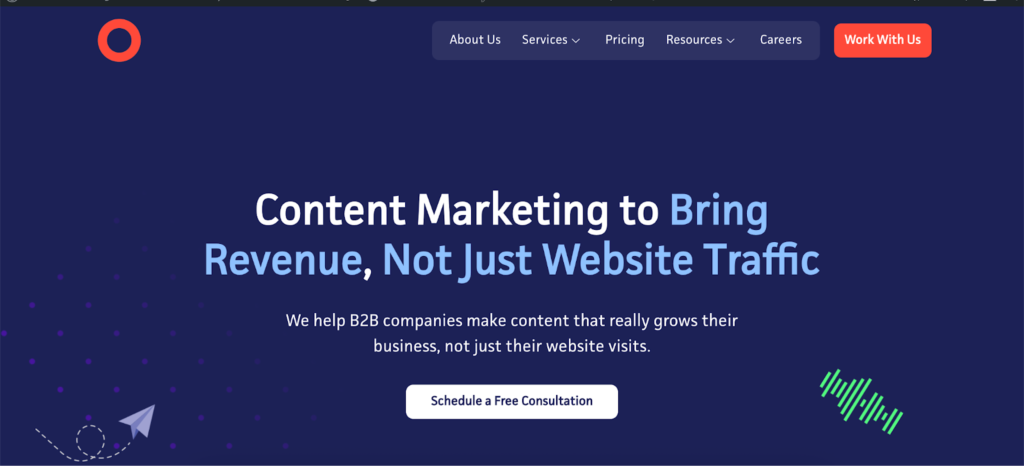
We’ve helped SaaS companies generate hundreds of sign-ups purely through content, focusing on the hard parts: positioning, intent, and decision-making—not just design.
You can read the full story here: B2B SaaS Content Marketing Case Study.
If you want your Canva-powered content to actually perform, not just look good, that’s the layer most teams are missing.
Claim a free consultation call with Concurate, and let’s turn your content into something that doesn’t just get published — but gets results.
Canva AI FAQs
Below are the most common questions people ask about Canva AI, answered honestly based on real usage, not marketing pages.
1. What is Canva AI?
Canva AI is Canva’s built-in set of AI-powered features designed to speed up the design process. It includes tools like Magic Design, Magic Media (text-to-image and text-to-graphic), Magic Expand, Background Remover, and Canva Code. Instead of working as a separate AI tool, Canva AI is fully integrated into the Canva editor, making it easy to use without extra setup.
2. Is Canva AI free to use?
Yes, Canva AI is available on the free plan, but with limitations. Some AI features are restricted, exports may include watermarks, and usage caps apply. To unlock full access to Canva AI features like Background Remover, Magic Expand, and advanced Magic Media tools, you’ll need Canva Pro or higher plans.
3. Is Canva AI worth paying for?
Based on real usage, Canva AI is worth paying for if Canva is part of your regular workflow. The Pro plan removes friction by unlocking AI features, premium assets, clean exports, and brand tools. If you design occasionally, the free plan is fine. If you design often, Pro saves time quickly.
4. Is Canva AI good for beginners?
Yes. Canva AI is one of the most beginner-friendly AI design tools available. The interface is intuitive, the AI suggestions are easy to edit, and there’s no steep learning curve. Beginners can create usable designs quickly while still learning design fundamentals at their own pace.
5. How do I use Canva AI?
You don’t need to enable Canva AI separately. Once you log in to Canva, AI features are available directly in the editor. You can access them through options like “Canva AI,” “Magic Design,” or “Edit image,” depending on the feature. Most tools work by entering a prompt and refining the result inside the editor.
6. What is Magic Design in Canva AI?
Magic Design is Canva AI’s prompt-based template generator. You describe what you want to create, such as a presentation, social post, or banner, and Canva generates multiple editable design options. It’s especially useful for presentations and social media layouts when you want structure without starting from scratch.
7. How good is the Canva AI image generator?
Canva’s AI image generator is good for quick visuals, concepts, and background images. It’s not the most advanced image generation model on the market, but it’s fast, accessible, and integrated directly into design workflows. For many use cases, “good enough” is exactly what you need.
8. How do I use the Canva AI image generator?
You can access the text-to-image feature through Magic Media. Enter a descriptive prompt, generate images, and insert them directly into your design. From there, everything remains editable like any other Canva element.
9. What is Canva Code and who is it for?
Canva Code allows users to generate simple interactive elements, animations, and basic website components using prompts. It’s best suited for quick builds, experiments, and lightweight interactive designs. It’s not meant to replace professional development tools or complex coding workflows.
10. Does Canva AI remove backgrounds from videos?
Yes. Canva’s Background Remover works for both images and videos on paid plans. While it’s not perfect in every scenario, it’s one of Canva’s most reliable AI features and significantly reduces the need for third-party background removal tools.
11. What are Canva AI’s system requirements?
Canva AI runs entirely in the browser. You don’t need a powerful system or special hardware. A modern web browser, a stable internet connection, and basic device specs are enough to use Canva and its AI features smoothly.
12. What is the best Canva AI alternative?
The best Canva AI alternative depends on what you need. Specialist tools often outperform Canva in specific areas such as image generation, video editing, and illustration. Canva AI stands out by combining many tools in one place, while alternatives usually focus on doing one thing exceptionally well.
13. Can Canva AI replace a professional designer?
No. Canva AI helps speed up design work, but it doesn’t replace design thinking, experience, or specialization. Many professionals use Canva alongside other tools. AI supports creativity, but real skill still comes from practice and depth.
14. Is Canva AI safe for commercial use?
Yes. Canva allows commercial use of designs created with its tools, including AI-generated content, as long as you follow Canva’s licensing and usage guidelines. Always review Canva’s latest terms to ensure compliance for client or commercial projects.